Your codes, all together.
Keep your accounts in one place. Find the right code and copy it when you need it.
Personal account482 916
Work account705 238
One quiet place for your two-factor codes.
Less searching. More peace of mind.
The essentials you need.
A calmer way to keep them together.
Keep your accounts in one place. Find the right code and copy it when you need it.
Scan a setup QR code or enter a key manually. Your next account is only a few taps away.
Create a password-protected encrypted backup or enable optional iCloud sync between your devices.
Use biometric protection and choose the widget accounts that work for you.
Import supported Google Authenticator migration QR codes without adding every account again.
Enable two-factor authentication on a service, then scan its QR code in Auth Code.
Organize your accounts and set up a backup. Keep your recovery codes somewhere safe.
Copy your current code and enter it on the service you’re signing in to.
Code generation works locally without internet. Downloads, purchases, iCloud sync and some other features need a connection.
You can scan supported Google Authenticator migration QR codes, scan individual setup QR codes or add an account manually.
Set up optional iCloud sync or create an encrypted backup before changing devices. Keep your backup password and service recovery codes safe.
Authenticator secrets are kept in Keychain and used to generate codes locally. The app uses separate analytics and purchase services. Read our Privacy Policy for details.
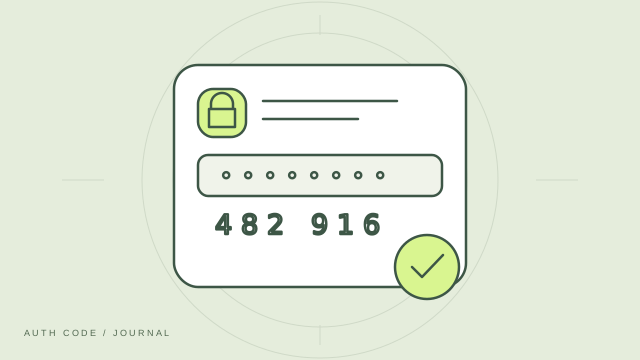
What two-factor authentication does, and how an authenticator fits into your sign-in routine.
Read article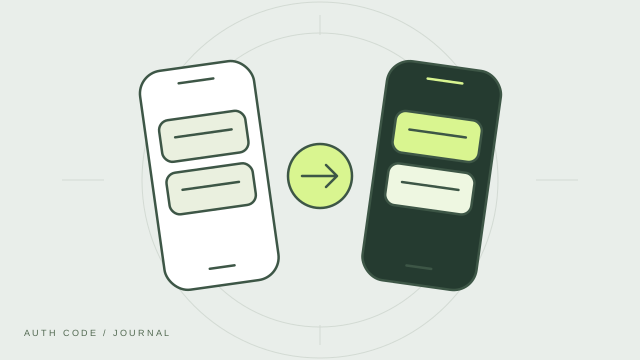
A thoughtful checklist for moving your authenticator accounts before you retire your old device.
Read article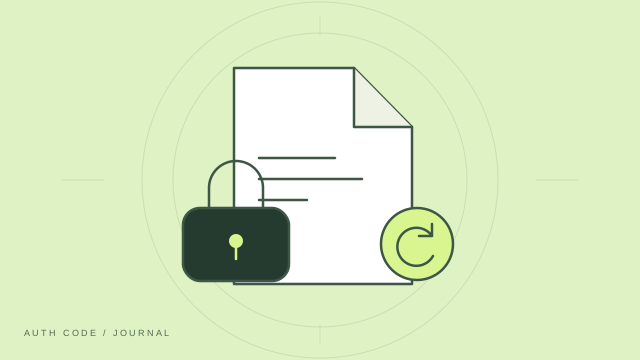
Keep encrypted exports, backup passwords and recovery codes useful when you need them most.
Read articleAuth Code: 2FA Authenticator. Made for iPhone.
Download on theApp StoreFor iPhone · Available on the App Store.