
Two steps to a sign-in
A password is one way to prove an account belongs to you. Two-factor authentication adds another check. With an authenticator app, that check is usually a short code generated from a secret shared during setup.
Start with the service you want to protect
Open the security settings of the account you want to protect. Look for two-factor authentication, two-step verification or an authenticator option. The service will typically show a setup QR code or a secret key. Add it to your authenticator and complete the service’s confirmation step.
Use the code where it belongs
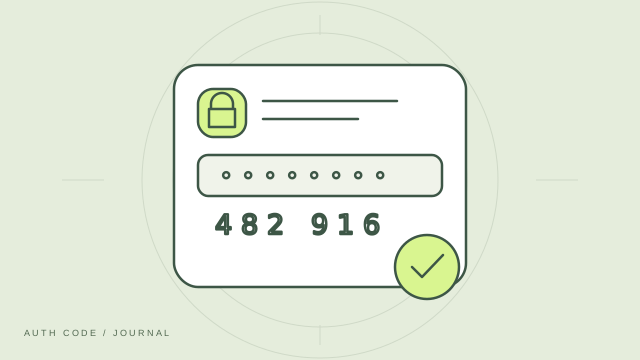
When that service asks for a verification code, open the matching account in your authenticator and enter the current code. Codes change regularly, so use a fresh one if a previous code expires. Code generation can work offline, although signing in to the service usually needs a connection.
Keep a recovery route
Save any recovery codes the service provides somewhere safe, separate from the authenticator. These can help if your phone is lost or unavailable. A backup of your authenticator and a service’s recovery codes serve different purposes; keep both where supported.
Stay attentive to the sign-in page
An authenticator code adds protection, but a fraudulent site can still ask you to enter one. Check the website or app you are using. Never share your setup secret, current codes or recovery codes with someone claiming to be support.