
Check the account first
Make sure you selected the authenticator entry for the service and user account you are signing in to. Similar names can hide different accounts. Also confirm the page is asking for an authenticator code rather than an email code, text-message code or recovery code.
Try a fresh code
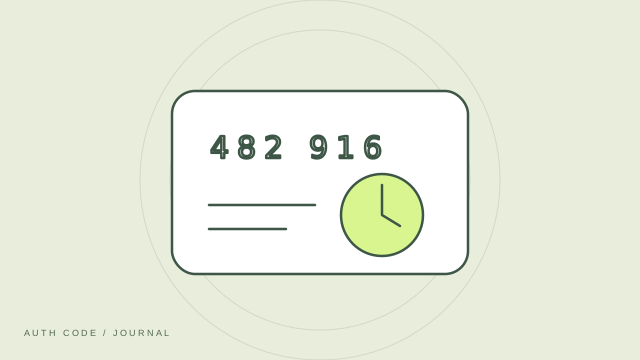
Time-based codes expire regularly. If a code is near the end of its period, wait for the next one and enter it promptly. Check for typing mistakes and follow the provider’s instructions about spaces. Do not repeatedly submit guesses if the service imposes attempt limits.
Review device time
Time-based authentication depends on an accurate clock. Check your device’s date and time settings, including its automatic time option where available. A significant time difference can make a correctly generated code fail the provider’s check.
Consider whether the setup changed
If you recently reset 2FA on the service, an old authenticator entry may still generate codes for the previous secret. Confirm which entry belongs to the current setup. Do not delete an entry until you have a verified replacement or another way to access the account.
Use the provider’s recovery path
If fresh codes from the correct account still fail, use a supported alternative or contact the service through its official help channel. Describe the issue without sharing your code or setup key. Auth Code support can help with the app, but the account provider controls acceptance of codes.